

Manual SOLIDWORKS processing has a way of hiding in plain sight.
Nobody adds “click export 140 times” to a project plan. Nobody schedules half a day for renaming STEP files, checking PDF drawings, creating DXFs, and making sure the latest revision ended up in the right release folder. Yet this work still happens in engineering teams every week.
It happens when a machine is ready for manufacture. It happens when a supplier asks for neutral files. It happens when purchasing needs a BOM. It happens when a fabrication team needs DXFs for sheet metal. It happens when a customer wants drawings in PDF format, and it usually happens at the worst possible time: near a deadline.
For teams working on agricultural equipment, processing machinery, material handling systems, irrigation assemblies, or any other mechanical product with a growing library of parts, the issue is rarely the CAD modelling itself. The issue is everything around the CAD model.
Finding the right file. Checking what assembly it belongs to. Confirming the current revision. Exporting the correct format. Naming the output properly. Avoiding duplicate files. Making sure nobody sends an old version to a supplier.
That is where batch export becomes more than a convenience. Used properly, it becomes a practical control point in the release workflow.
The real problem is not one export
Exporting a single SOLIDWORKS file is easy.
Open the part, assembly, or drawing. Choose the output format. Save it somewhere sensible. Check the name. Move on.
The problem starts when the same process has to happen 50, 100, or 200 times.
A small release package might include PDFs for drawings, STEP files for suppliers, DXFs for sheet metal parts, and a BOM export for purchasing. A larger assembly can turn that into a long, repetitive, error-prone task. The engineer is no longer making engineering decisions. They are babysitting export dialogs.
That may sound harmless, but this kind of repetitive file work creates several risks.
The first is time loss. Engineers and CAD managers are expensive resources. Their time is better spent reviewing designs, resolving manufacturing issues, improving assemblies, or supporting production.
The second is inconsistency. Manual exports depend on the person doing the work. One engineer may use part number and revision in the file name. Another may include description. A third may save everything into a temporary folder and clean it up later. Over time, those small differences make release folders harder to trust.
The third is avoidable error. When file names are typed, copied, pasted, or manually adjusted, mistakes creep in. A missing revision letter, an old PDF, a duplicate STEP file, or the wrong drawing can create confusion downstream.
That is why batch export matters. Not because clicking “Save As” is difficult, but because repeated manual exporting is a poor use of engineering time.
Why SOLIDWORKS batch export needs structure
The phrase “batch export” sounds simple. Select a group of files, choose formats, and run the export.
In practice, a useful batch export workflow needs more control than that.
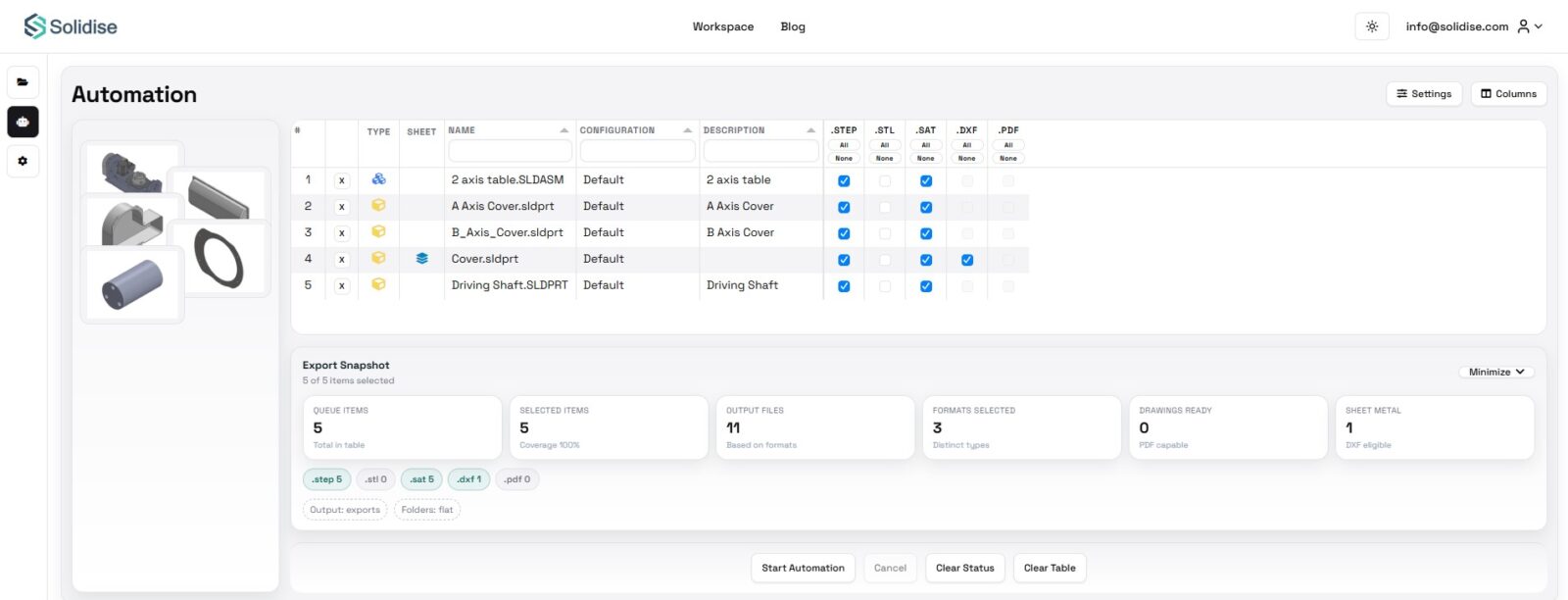
A team needs to know which files are included. It needs to know whether drawings exist for the parts being exported. It needs to know which configurations are being used. It needs to know where the files will be saved. It needs to know how output files will be named. It also needs a way to catch collisions before the export starts.
This is especially important when custom properties are part of the release process.
Many SOLIDWORKS teams already store useful metadata in file properties: part number, description, revision, material, project code, customer reference, drawing number, and other internal values. Those properties are not just admin details. They are often the information that makes an exported file useful to manufacturing, purchasing, or suppliers.
For example, a STEP file called:
Bracket.step
is not as helpful as:
AG-1042_Bracket_REV-C.step
The second name carries context. It tells the person receiving the file what the part is, which number it belongs to, and which revision they are looking at.
That kind of naming can be done manually, but it should not have to be. If the information already exists inside SOLIDWORKS properties, a batch export workflow should be able to use it.
Where Task Scheduler fits, and where it becomes awkward
SOLIDWORKS Task Scheduler is often the first native tool people think about for this type of work. It can be useful, and it has its place. For certain scheduled jobs, file conversions, and repetitive tasks, it can reduce manual effort.
However, it is not always the smooth answer teams hope for.
The first issue is licence level. Many smaller engineering teams do not have every SOLIDWORKS feature unlocked across every seat. Depending on the licence setup, the functions a team wants may not be available in the way they expect. For teams working with standard seats, that can make export automation feel like something that exists inside the ecosystem but is still not easily available.
The second issue is usability. Task Scheduler feels more like a utility than a modern release workflow. It can automate tasks, but it does not necessarily give the user a comfortable way to browse CAD context, inspect file relationships, preview naming rules, check output collisions, and manage a release queue in one place.
That distinction matters.
A CAD manager does not only need a tool that can export files. They need confidence that the right files are being exported, in the right format, with the right names, into the right folder.
That is where a more focused Solidworks batch export workflow becomes valuable.
A better workflow starts before the export
One mistake teams make is treating export as the final button press.
In reality, a good export process starts earlier. Before creating PDFs, STEP files, or DXFs, the user needs to understand the file set.
Which assembly is this part used in? Is there a drawing for it? Is the file in the correct state? Are the custom properties complete? Is the revision field empty? Does the part belong to a larger release package? Are there duplicate file names waiting to happen?
This is why file browsing and CAD context are closely connected to export automation.
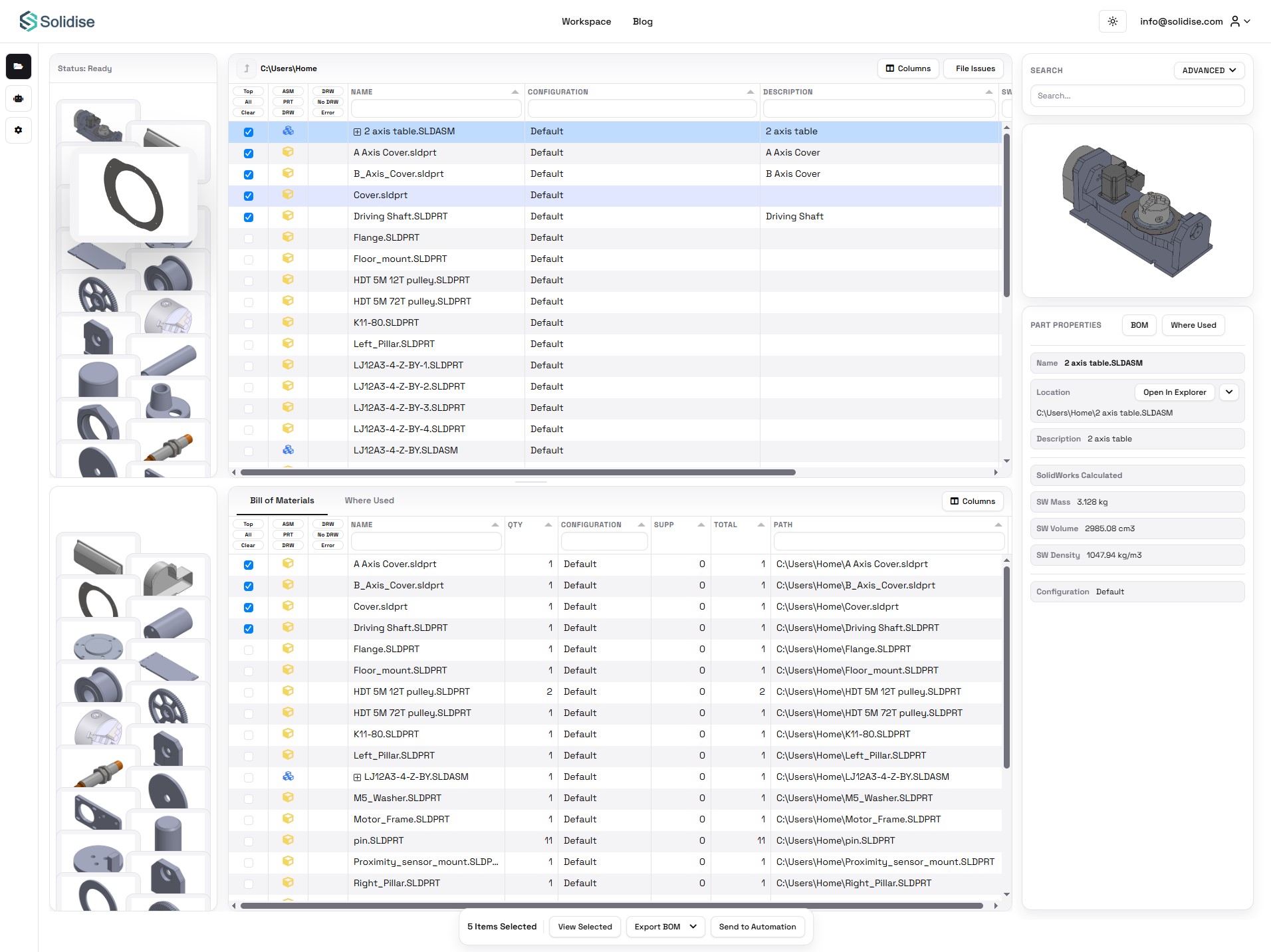
A normal Windows folder can show file names and modified dates. That is not enough for serious CAD work. A folder tree does not explain assembly structure. It does not show where-used relationships clearly. It does not give a clean view of BOM information. It does not reliably help someone understand whether a part is reused in multiple places.
This becomes even more important in equipment design, where parts are reused across machines, variants, and customer-specific projects. A bracket designed for one conveyor may later appear in a hopper assembly. A purchased component may be shared across multiple product lines. A hydraulic mount, sheet metal guard, or machined spacer may be reused because it saves design and manufacturing time.
Reuse is good engineering practice, but it also makes file handling more sensitive. Before changing, replacing, deleting, or exporting a reused part, the team needs to know where it appears.
How Solidise approaches the problem
Solidise is useful because it stays close to the practical workflow SOLIDWORKS teams already deal with: browse the files, understand the context, select the outputs, preview the naming, and run the export.
It is not trying to replace SOLIDWORKS. The modelling, drawing, assembly work, and engineering decisions still happen in SOLIDWORKS. Solidise is aimed at the file handling around that work.
The browser-based workspace gives teams a clearer way to inspect SOLIDWORKS files without opening everything one by one. Assemblies, parts, drawings, thumbnails, configurations, custom properties, BOM information, and where-used context can be reviewed from the workspace.
That matters because opening files just to check basic information is one of the quiet time-wasters in CAD work. It interrupts the engineer’s flow and turns basic questions into a slow sequence of file opens, rebuilds, folder searches, and property checks.
A local-first approach also matters. CAD files are often large, sensitive, and tied to customer projects. Many teams do not want to upload design files into a cloud service just to search, inspect, or export them. A local agent keeps the workflow closer to the workstation while still giving users a more useful browser-based interface.
For teams that need a dedicated workflow for this, Solidworks batch export in Solidise is designed around queue-based exporting, output selection, naming previews, collision checks, and local output control.
The automation queue is the real time saver
The most useful part of a proper Solidworks batch file export workflow is the queue.
A queue changes the process from “open and export repeatedly” to “prepare, review, and run.”
Selected parts, assemblies, or drawings can be added to an export queue. The user can then choose the required output formats, such as PDF, STEP, DXF, and other supported SOLIDWORKS outputs. Instead of committing immediately, the queue can be reviewed first.
That review step is important.
If a release folder is about to receive two files with the same name, the user should know before the export starts. If a naming rule is wrong, that should be visible before dozens of files are created. If a drawing is missing, or a property value is blank, the workflow should make that obvious enough for the user to fix it.
This is the difference between batch export as a simple automation feature and batch export as a controlled release process.
The goal is not just speed. Speed without control can create errors faster. The goal is to reduce manual effort while improving consistency.
Naming rules are not a small detail
File naming sounds like admin work until something goes wrong.
A supplier receives the wrong STEP file. A fabricator cuts sheet metal from an old DXF. Purchasing quotes a component from an outdated revision. A production team has two PDFs with similar names and no clear way to know which one is current.
These problems often begin with weak naming rules.
A good export workflow should let the team build names from the information already stored in SOLIDWORKS. For example, an exported file name might include part number, description, revision, material, or configuration. If the revision field is not empty, the output name can include it. If a property is missing, the user can catch it before exporting.
A simple example would be adding a revision suffix only when the revision property exists.
If a part is named “Flange” and the revision is “B”, the exported file could become:
Flange.REV_B.step
That small naming decision makes the output easier to understand later. It also reduces the need for manual renaming in Windows Explorer after the export.
For CAD managers, this is where batch export becomes a standards tool. It helps enforce consistent file naming across the team without relying on everyone to remember the same manual steps.
Why this matters for engineering teams
Engineering teams often focus on large process improvements: new PDM systems, new ERP integrations, new drawing standards, new approval workflows, or new manufacturing processes.
Those projects can be valuable, but they are also heavy. They take time, budget, training, and internal agreement.
Batch export is a smaller improvement, but it targets work that happens constantly.
That makes it powerful.
A team does not need to overhaul its entire engineering data system to benefit from better release exports. It can start by reducing the repeated manual steps that already cause friction. It can standardise output names. It can make release folders more predictable. It can reduce the chance of sending the wrong file. It can give engineers time back.
This is especially useful for small and mid-sized teams that are not ready for a full PDM implementation, or that have PDM but still deal with practical export and release packaging tasks around customer and supplier communication.
Even in a well-managed CAD environment, neutral file exports remain part of daily engineering life. Suppliers often need STEP. Fabricators need DXF. Non-CAD stakeholders need PDF. Purchasing needs clean BOM data. Production needs clarity.
The less manual that process is, the better.
Where I would use this first
If I were introducing batch export into a SOLIDWORKS team, I would not start with every file and every project.
I would start with the most painful release package.
For many teams, that is drawings to PDF. For others, it is STEP files for supplier quotes. For sheet metal-heavy teams, DXF export may be the obvious first target. In machinery design, it may be a combination of all three.
The first goal should be a controlled, repeatable workflow for one common output set.
Define the output folder. Define the naming rule. Decide which properties matter. Decide how revisions should appear in file names. Decide what should happen when a property is missing. Decide how duplicate names should be handled. Then test the workflow on a real assembly.
Once that works, expand it.
The best automation is usually introduced gradually. It should support the team’s existing habits first, then improve them.
Video walkthroughs on Solidise YouTube channel.
Final thoughts
The most useful engineering tools are often the ones that remove repeated work without getting in the way.
SOLIDWORKS is where the design work happens. That does not mean every surrounding task should happen manually inside SOLIDWORKS, one file at a time.
For engineers and CAD managers, batch export is one of those workflow improvements that looks small until you measure how often the work is repeated. PDFs, STEP files, DXFs, BOM exports, naming checks, revision labels, and release folders all take time. More importantly, they require attention that could be spent on actual engineering decisions.
Solidise is practical because it focuses on that surrounding workflow: browsing CAD files, checking BOM and where-used context, preparing export queues, previewing file names, catching collisions, and keeping output control local.
It still depends on clean properties and sensible release rules. No export tool can fix a poorly managed CAD library by itself. But when those basics are in place, a controlled batch export workflow can turn a slow manual process into something faster, clearer, and easier to trust.
Engineers should spend less time babysitting export dialogs and more time doing engineering work.
Contact:
If you have any questions, thoughts, or suggestions, please contact us or join our social media networks.
Email us: agribusinessedu@gmail.com, info@agribusinessedu.com
Feel free to comment:
Your email address will not be shared with anyone.
Join our LinkedIn group
https://www.linkedin.com/groups/13943442/
Join our Facebook group
https://www.facebook.com/groups/agribusinesseducationandresearchinternational
You May Read: Producers Surplus of Agricultural Commodities – Agribusiness Education and Research International
You May Read: What are the Characteristics and Traits of an Entrepreneur? – Agribusiness Education and Research International
You May Read: Why is market information important? – Agribusiness Education and Research International
You may read: Agribusiness how it works? – Agribusiness Education and Research International
You may read: Covid -19 Pandemic Impact on Agribusiness – Agribusiness Education and Research International
You may read: What is Agribusiness? – Agribusiness Education and Research International
You may read: Agribusiness in Bangladesh – A Basic Introduction – Agribusiness Education and Research International
You may read: Organic Agriculture Introduction – Agribusiness Education and Research International
You may read: What is Sustainable Agriculture? – Agribusiness Education and Research International
What is Permaculture? – Agribusiness Education and Research International
